# xteink-plugins
A plugin system for customizing and extending https://github.com/crosspoint-reader/crosspoint-reader firmware on your xteink device. Plugins are applied as source-level patches before the firmware is compiled and flashed.
## Plugins
### Dark Mode
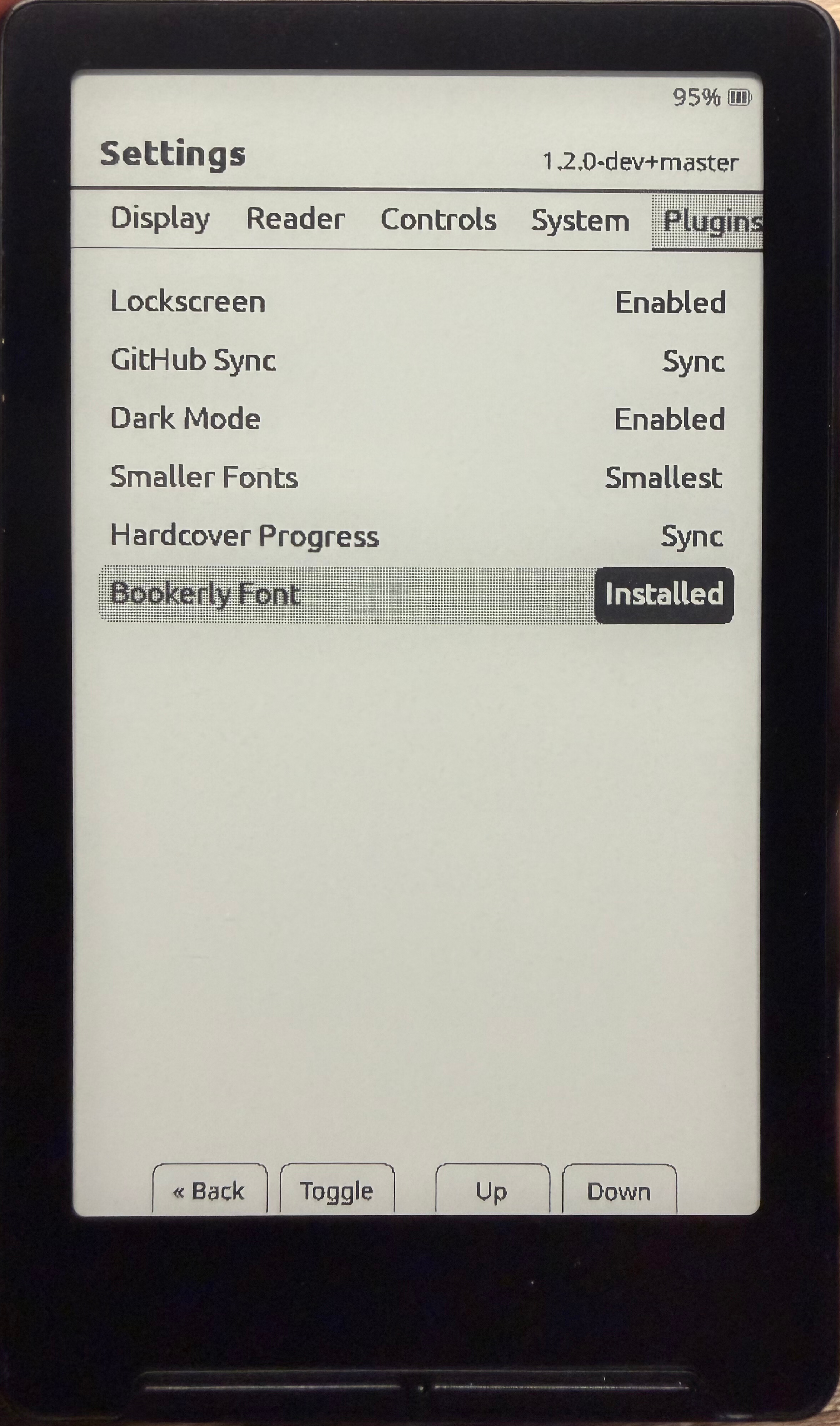
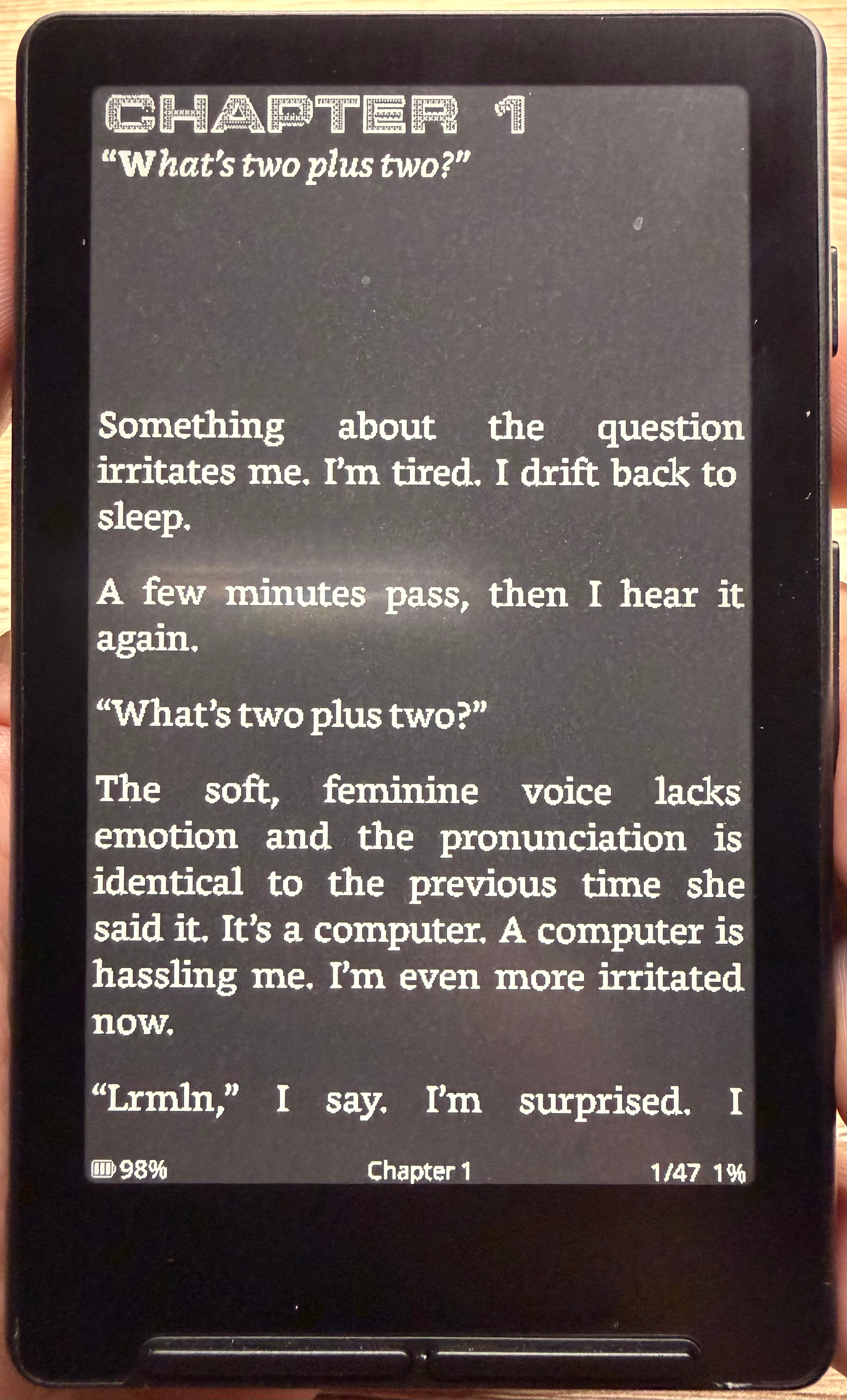
Adds a Dark Mode option to the Plugins settings tab and the web interface Settings page. When enabled, the screen is inverted after each page render, producing white-on-black text across all reader formats (EPUB, TXT, and XTC).
State | Effect
------|--------
Disabled | Normal display (default)
Enabled | Screen inverted — white text on black background
---
### Smaller Fonts
Adds a Smaller Fonts option to the Plugins settings tab and the web interface Settings page. When enabled, your chosen reader font is transparently substituted with a smaller variant — no need to change your font preference.
Mode | Effect
-----|--------
Disabled | No change (default)
Enabled | Drops the current font size down by one step (e.g. Bookerly 16 → 14)
Supports Noto Serif, Noto Sans, and Bookerly.
---
### Lockscreen
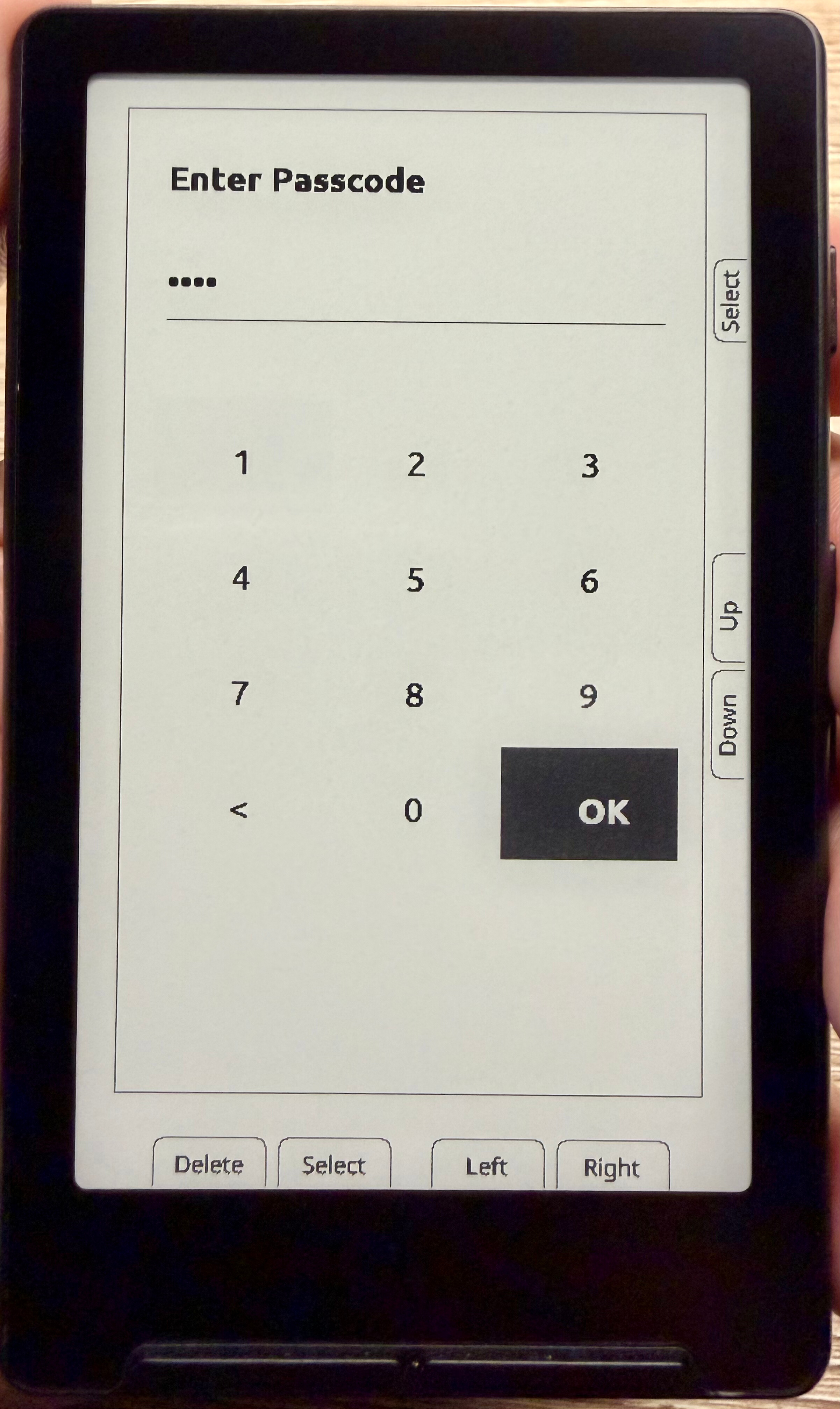
Adds a customizable Lockscreen experience to your xteink device.
This plugin introduces a dedicated lockscreen activity that is shown when the device wakes or powers on.
Features:
- Custom lockscreen activity integrated into firmware
- Four-digit PIN configurable on plugin enable
- Displays on device wake or power-on
- Replaces default wake screen behavior
- Clean UI consistent with CrossPoint Reader
---
### Bookerly Font
Adds the Bookerly font to your xteink device, available as a reader font option alongside the built-in Noto Serif, Noto Sans, and OpenDyslexic fonts.
- Generates Bookerly at 12pt, 14pt, 16pt, and 18pt during install
- Selectable via Settings → Reader → Font
- Works with the Smaller Fonts plugin to drop one size step down (e.g. 16 → 14)
---
### Hardcover Sync
Automatically syncs your reading progress between your xteink device and https://hardcover.app.
- Extracts ISBN metadata from EPUB files to identify books
- Tracks reading progress (page numbers) while you read
- Automatically syncs progress for books with > 0% completion
- Marks books as "Read" when you reach 100%+ completion
- Requires a Hardcover API token configured in Settings
Books without ISBN metadata or at 0% completion are skipped. 100%+ completed books are automatically moved to your "Read" shelf on Hardcover.
Requirements:
- Active internet connection via WiFi
- Hardcover account and API token
- Books with embedded ISBN metadata
---
### GitHub Sync
Syncs `.epub` files from a private GitHub repository to your device on boot.
- Downloads new or updated books from your configured repo automatically on startup
- Skips files already on the device that haven't changed
- Configurable via Settings → Plugins → GitHub Sync (username, personal access token, repo, branch), after flashing
Requirements:
- Active internet connection via WiFi
- GitHub account with a repository containing your `.epub` files
- Personal access token with read-only Contents access to the repo
---
### Pong Game
Adds a classic Pong game against a CPU opponent, launched from the Plugins settings tab.
- Left/Right (or Up/Down, Back/Confirm) move your paddle in full paddle-width steps
- CPU controls the top paddle and tracks the ball
- First to 7 points wins; any button exits the win/lose screen
- Power always exits the game
---
### Dino Game
Adds the classic offline dinosaur runner as a full-screen game, launched from the Plugins settings tab.
- Endless runner: jump the cacti as the game speeds up over time
- Any button except Power jumps; Power exits the game
- On Game Over, any button restarts and Power exits
- A bird flies across the top of the screen for atmosphere - it's decorative only, no need to dodge it
- Score is shown top-right and resets each session
---
### Snake Game
Adds a classic Snake game sized to your device's screen, launched from the Plugins settings tab.
- The 4 front buttons are fixed to Left / Right / Up / Down for this game, with on-screen labels above each button showing the mapping
- Eat food to grow and score points; speed increases as your score climbs
- Hitting a wall or yourself ends the game; any front button restarts and Power exits
- Filling the entire board is a win
---
## Requirements
- Python 3.10+
- PlatformIO (pio on your PATH)
- git
- Your xteink device connected via USB
Install Python dependencies with:
pip3 install -r requirements.txt
## Usage
From the root of this repository, run:
python3 install.py
To auto-accept all plugin prompts and skip the restore/backup and baud rate prompts, pass --yes (or -y):
python3 install.py --yes
By default this uses the default build environment. To use a different environment pass --environment (or -e):
python3 install.py --environment slim
python3 install.py --environment gh_release
Environment | Description
------------|-------------
default | Debug logging enabled, version from current git branch (recommended)
gh_release | Info logging only, version hardcoded to release tag
slim | No serial logging, smallest binary size
Before flashing you'll be asked to pick an upload baud rate:
Rate | Description
-----|------------
115200 | Recommended - most reliable, avoids "chip stopped responding" errors
921600 | Faster - for those feeling froggy
To skip the prompt, pass --baud (or -b):
python3 install.py --baud 115200
Flags can be combined:
python3 install.py -y -e gh_release -b 115200
The installer will:
1. Offer to restore from a previous backup, if one exists in the current directory
2. Offer to back up your current firmware before making any changes
3. Clone the CrossPoint Reader source repository
4. Prompt you to select which plugins to install and apply them as patches
5. Build the firmware with PlatformIO
6. Auto-detect your device's serial port, ask for an upload baud rate, and flash the firmware
Note: This script modifies and flashes custom firmware to your device. The author accepts no responsibility for any damage that may occur to your device as a result of using this installer.
## Repository Structure
```
xteink-plugins/
├── install.py # Interactive installer: clone → select → apply → build → flash
├── framework/ # Shared plugin engine (see "Adding a Plugin" below)
│ ├── manifest.py # Declarative contribution types plugins are built from
│ ├── engine.py # Applies every selected plugin's contributions in one pass
│ └── discovery.py # Finds plugin.py files under plugins/
├── test_harness.py # Applies every plugin, alone and in combination, against a
│ # fresh clone and reports pass/fail - run this after adding
│ # or editing a plugin
└── plugins/
├── darkmode/
│ ├── plugin.py
│ └── DarkModePlugin.h/.cpp
├── smallerfonts/
│ ├── plugin.py
│ └── SmallerFontsPlugin.h/.cpp
├── lockscreen/
│ ├── plugin.py
│ ├── LockscreenPlugin.h/.cpp
│ └── LockscreenActivity.h/.cpp
├── bookerly/
│ ├── plugin.py
│ └── BookerlyPlugin.h/.cpp
├── hardcover/
│ ├── plugin.py
│ ├── HardcoverPlugin.h/.cpp
│ └── HardcoverSyncActivity.h/.cpp
├── githubsync/
│ ├── plugin.py
│ ├── GitHubSync.h/.cpp
│ └── GitHubSyncSettingsActivity.h/.cpp
├── pong/
│ ├── plugin.py
│ └── PongActivity.h/.cpp
├── dinogame/
│ ├── plugin.py
│ └── DinoActivity.h/.cpp
└── snakegame/
├── plugin.py
└── SnakeActivity.h/.cpp
```
## Troubleshooting
### Linux: Permission denied when flashing
If you see an error like:
Could not open /dev/ttyACM0, the port is busy or doesn't exist
or Permission denied
Run:
sudo usermod -aG dialout $USER
Log out and log back in for the change to take effect, then re-run install.py.
### Windows: 'pio' is not recognized
If you see:
'pio' is not recognized as an internal or external command
Run in PowerShell:
$env:PATH += ";$env:USERPROFILE\.platformio\penv\Scripts"
[Environment]::SetEnvironmentVariable("PATH", $env:PATH, "User")
If Python was installed from the Microsoft Store:
$scripts = (Get-ChildItem "$env:USERPROFILE\AppData\Local\Packages" -Filter "Scripts" -Recurse -ErrorAction SilentlyContinue | Where-Object { $_.FullName -like "*Python*" } | Select-Object -First 1).FullName
$env:PATH += ";$scripts"
[Environment]::SetEnvironmentVariable("PATH", $env:PATH, "User")
Restart your terminal and re-run install.py.
## Adding a Plugin
1. Create a new directory under `plugins/` with your plugin's name.
2. Add a `plugin.py` with a `get_manifest(ctx) -> PluginManifest` function. Use an existing plugin (e.g. `plugins/pong/plugin.py` for a simple action-row example, or `plugins/darkmode/plugin.py` for a settings-backed one) as a template. `framework/manifest.py` documents every contribution type: `SettingsField`, `PluginsTabEntry`, `SettingActionEnumValue`, `MainHook`, `ToggleHook`, `TranslationEntry`, and so on.
3. List any plugin-owned `.h`/`.cpp` files under `source_files` so the installer copies them into the firmware tree - you don't touch any shared CrossPoint file directly.
4. Run `python3 test_harness.py /tmp/scratch ` (or `all` to check every plugin and combination) to confirm it applies cleanly alone and alongside everything else, before shipping it.
The installer automatically discovers and offers to install any directory under `plugins/` that contains a `plugin.py` exposing `get_manifest`.